Voiger For Zoho CRM
— User Guide
Manage calls directly from Zoho CRM using the Voiger dialer. Match callers with existing records, log conversations automatically, and keep your sales team connected without leaving the CRM.

Zoho CRM Integration Requirements
Make sure you have the following requirements in place before using the Voiger integration.

STEP 01
Zoho CRM Edition
Professional, Enterprise, or Ultimate edition of Zoho CRM is required to use the Voiger integration.

STEP 02
Voiger Extension
Install and enable the Voiger extension from the Zoho Marketplace within your Zoho CRM account.

STEP 03
Active Voiger Account
An active Voiger account with telephony access is required before connecting to Zoho CRM.

STEP 04
Microphone Permission
Allow browser microphone access when prompted so agents can make and receive calls from Zoho CRM.

STEP 05
CRM Access Permissions
Allow access to Leads, Contacts, and Calls in Zoho CRM. These permissions enable caller matching, Lead creation, and call logging.
Powerful features built for your workflow
Everything you need to manage Voiger calls, track conversations, and keep your team connected — directly within Zoho CRM.
Block 01
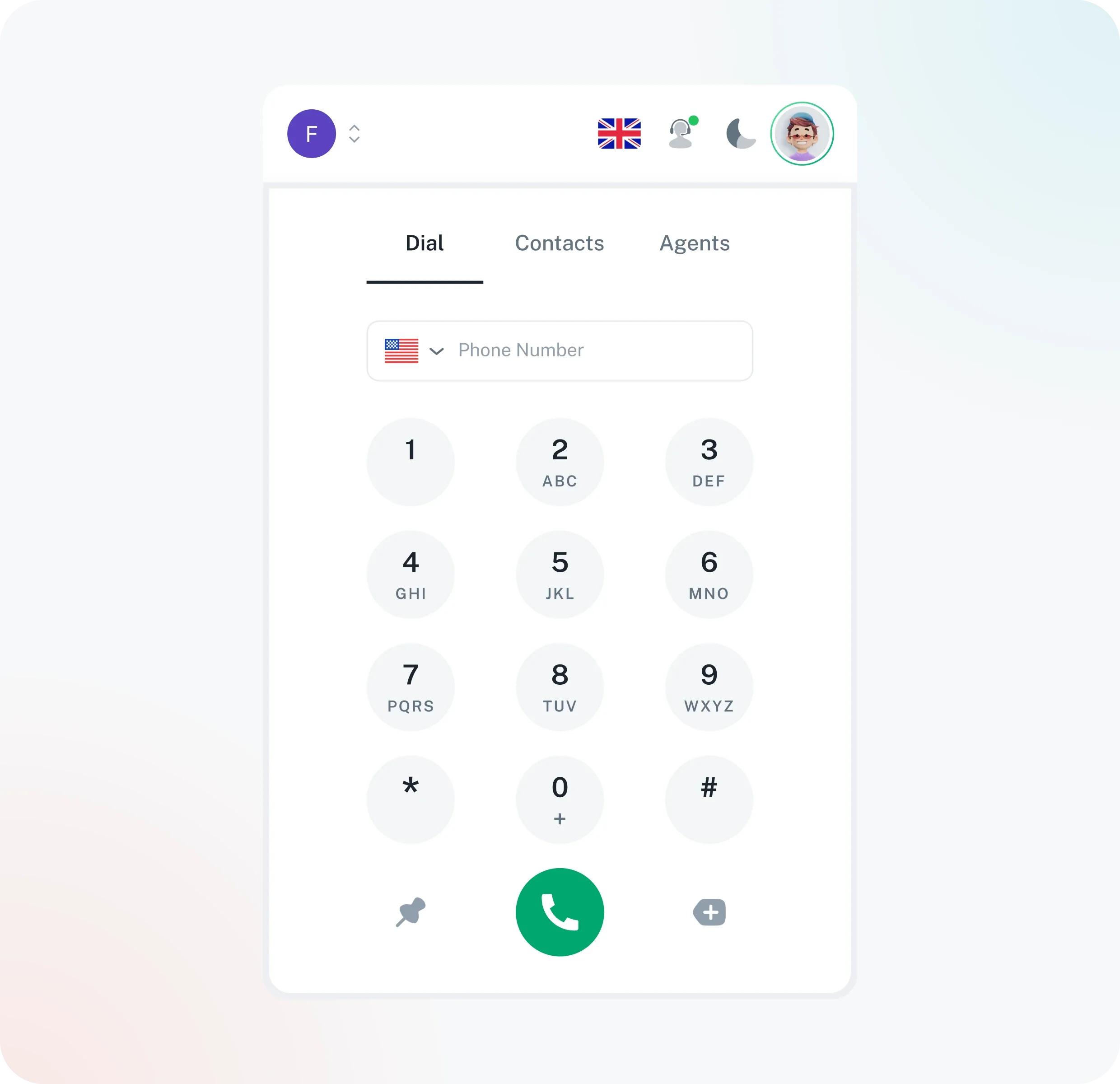
Make and manage calls from Zoho CRM
Voiger dialer inside Zoho CRM
Click-to-call from Contacts and Leads
Make calls directly from dialer
Country-code phone number format
Manage active calls
Block 02
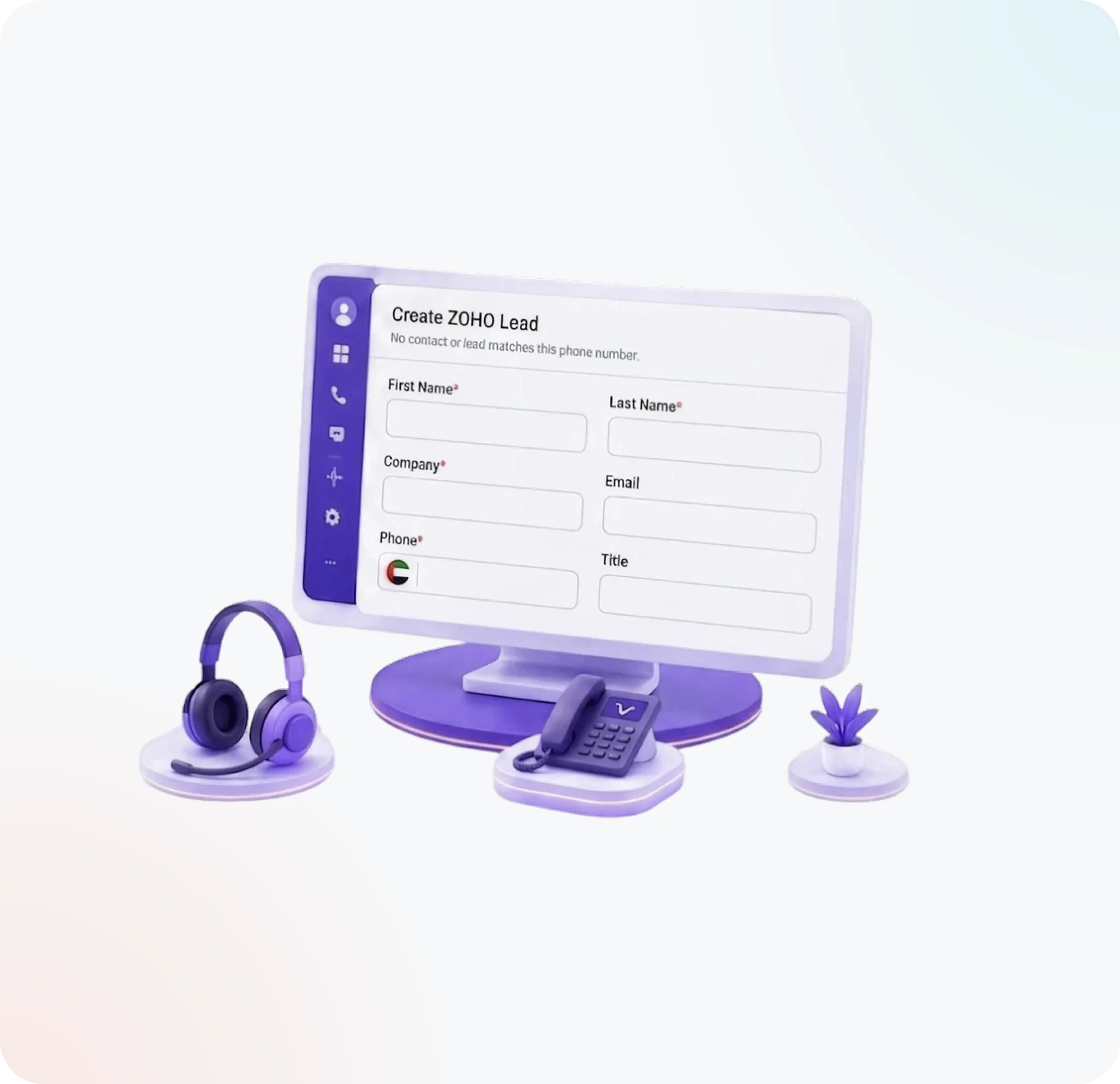
Keep CRM records connected
Automatic call logging
Link call to matching Contact
If no Contact, link to matching Lead
If neither exists, prompt to create Lead
Reuse existing records instead of creating duplicates
Troubleshooting
Common issues and how to resolve them. If the problem persists, contact the Voiger support team.
Check your browser settings and allow microphone access for Zoho CRM. Reload the page after granting permission and try placing a call again.
Voiger requires phone numbers in international format with a country code. Update the Contact or Lead record and include the correct prefix before calling.
The Lead creation prompt appears when no matching Contact or Lead is found. Confirm CRM permissions allow access to Leads and that the caller number is valid.
Ensure the Voiger extension is active and that your account has permission to create Call records in Zoho CRM. Completed calls should log automatically after the session ends.
Call recording depends on your Voiger plan and account settings. Confirm recording is enabled for your organisation and that the call completed successfully.
Sign out and sign back into Voiger from Zoho CRM to refresh your session. If the issue continues, clear your browser cache and reload the CRM page.
Ready to transform your voice operations?
Whether you use Voiger AI or bring your own, we're here to help you succeed.


